Sunday, May 24, 2020

Historic Hacker Hi-jinks

Welcome back reader! This will be my final post for my CYBR 650 course work.  Hopefully, I'll be able to keep writing every now and then. Last time, I gave you some information on why hackers hack.  My professor graciously gave me an alternative definition; "technical adeptness and a delight in solving problems and overcoming limits."  This comes from a 1990 article by Eric Raymond, which can be found here, http://www.catb.org/~esr/faqs/hacker-howto.html.

tl:dr

Most of my posts have talked about increasing your personal cybersecurity or general tips on protecting yourself while connected to the Internet.  I've given you the "how," but I haven't focused on the "why" to do the things I've talked about.  This post will talk about the history of cyberattacks, looking at some of the worst attacks in history.

What is a Cyberattack?

A cyberattack is a computer, or network of computers, used to deny, degrade, disrupt, destroy, or manipulate services or data on a target computer or network of computers.  In the military cyber community, these methods are also referred to as D4M.  However, these types of effects equate to similar outcomes in the civilian world as well.  Cyberattacks can have specific targets or be indiscriminate.  They can be designed to steal information or cause physical destruction of systems.

Indiscriminate Attacks

WannaCry ransomware attack - Wikipedia
These attacks don't care who they infect, they infect every system they can get their grubby little hands on.  As time passes, these types of attacks have gotten worse.  One of the most recent attacks was the WannaCry ransomware attack.  WannaCry took advantage of a vulnerability in the Windows Server Message Block (SMB).  Once the SMB vulnerability was exploited, WannaCry encrypted files on the hard drive, making them inaccessible to users, and then demanded a ransom to be paid in BitCoin before decrypting the files.  This attack occurred about 2 years ago, you can read more about it here: https://www.csoonline.com/article/3227906/what-is-wannacry-ransomware-how-does-it-infect-and-who-was-responsible.html.

Targeted Attacks

These types of attacks tend to be a little more "newsworthy" because of the targets, which have included Target (2013), Home Depot (2014), and Sony's PlayStation Network (2011).  Most recently, the World Health Organization (WHO) was breached in March 2020, and WHO staff member credentials were leaked.  You can read more about any of these just by using our friend Google, but info on the WHO attack can be found here: https://www.bbc.com/news/technology-52381356.

Destructive Attacks

The first time I remember reading about a destructive attack was the 2007 cyberattack against Estonia.  This attack targeted government sites, news sites, major banks, Internet service providers, and small businesses.  It essentially shut the Internet in the country down with a distributed denial of service.  More information can be found here: https://www.wired.com/2007/08/ff-estonia/.
Shamoon - Wikipedia
One of the most destructive attacks was the Shamoon virus, in 2012.  The Shamoon virus was designed to wipe infected systems, overwriting the information with garbage data.  The target of the Shamoon virus was workstations within the Saudi Aramco infrastructure; 30-35,000 of them, and it worked.  In only a few hours, all of these workstations were either partially or completely destroyed.  

Think about that for one minute...30,000 computers, all wiped and their hard drives unusable, destroyed.  All of these computers needed replacement hard drives.  Even at $50 per hard drive, the cost is $1.5 million, PLUS the cost to pay people to reinstall all of the software.  What about the time investment?  This was an extremely expensive attack and you can read more about it here: https://money.cnn.com/2015/08/05/technology/aramco-hack/, and here: https://www.zdnet.com/article/shamoons-data-wiping-malware-believed-to-be-the-work-of-iranian-hackers/.

The Future?

Why am I telling you about the past?  Partially because we can learn from it and defend our networks better in the future.  The other reason is directly related to the situation we are in right now, a COVID-19 world.  In a May 14, 2020 article, Stephen McBride predicted the largest cyberattack in history will occur within the next 6 months.  I won't repeat everything he said, but here is the basic break down.  Organizations have had to adjust their infrastructure to allow their workforce to work from home.  These adjustments were done quickly and maybe not in the most secure manner.  Regardless of the quality of security, the attack surface of many organizations has increased exponentially.  You can Mr. McBrides article here: https://www.forbes.com/sites/stephenmcbride1/2020/05/14/why-the-largest-cyberattack-in-history-will-happen-within-six-months/#5aa7c2be577c

Finally, you need to secure your system to protect yourself.  If you work from home, you need to secure your system to protect your organization as well.  

Sunday, May 17, 2020

Hazerdous Hacker Hacking

Welcome back ready, this is another CYBR 650 post.  This post comes a few weeks after we talked about cloud capabilities.  The two prior posts talked about hackers using the COVID-19 pandemic as a subject for phishing attempts as well as attacking video teleconferencing software.  These posts got me thinking, do you know why hackers hack?

tl:dr

This blog has been all about protecting your computer system from hackers.  But why are we worried about hackers?  Why do hackers hack?

What is a hacker?

Most famous hackers in history - Panda Security Mediacenter
According to dictionary.com, a computer hacker is simply someone that uses computers to gain unauthorized access to data.  That data could be anything from business information or personal documents on your hard drive.  Hackers wear one of three different colored hats, black, white, or grey.  Regardless of the type of hacker, their motivations vary based on the goals of the hack are.

Hacker Types

Hackers wear one of three different colored hats defining the initial motives behind their actions; black, white, or grey.  A black hat hacker is the kind we generally think of when we think of hackers, the bad guys.  Black hat hackers break into networks to steal, manipulate, or destroy data.  Thankfully, a balance exists in white hat hackers.  These hackers are also known as "ethical hackers."  The goal of the white hat hacker is to discover security vulnerabilities to strengthen a network.  In between the black and white hats are grey hat hackers.  These hackers begin with good intentions like white hats, but perform their actions without permission.  Once a vulnerability is found, they report it to the system owner with a demand for compensation.  If they don't get what they ask for, a grey hat hacker may exploit the vulnerability or sell the exploit to black hat hackers.(https://www.appknox.com/blog/why-do-hackers-hack)

Why Hackers Hack

Office Space What Would You Say You Do Here GIFs | Tenor

Even within the different categories, motivations can differ greatly based on the type of hacker.  For the most part, we are going to assume that these motivations are connected to the black hat hacker.

Criminals

Criminals are motivated by financial gain, fame (or infamy), revenge, or increasing their professional portfolio.  The targets of these motivations are numerous and all depend on the goal at the time.  The methods used include theft or denial of service.

Hacktivists

Hacktivists are motivated by an ideology.  Hacktivists feel that they have something to prove in relation to a political or social issue.  The actions they take are designed to persuade the hearts and minds of whomever sees their message.  The methods for hacktivism must be seen to be effective, so they generally include defacement of websites. 

Nation States

Nation states can use hacking to enhance their state of national security or to gain information as a means of control.  Nation states target other nations or dissidents that oppose the official national policy.  Nation states use teams with a variety of abilities categorized in groups called advanced persistent threats, or APTs.  More information of known APTs can be found here: https://attack.mitre.org/groups/

Terrorists

Terrorists use hacking techniques to instill fear in their targets.  To increase their audience, they usually choose high visibility targets.  Similar to hactivists, terrorists can use defacement tactics or destruction of their targets.

Insider Threats

Insider threats have a variety of motivations ranging from monetary gain, revenge, ideology, or stroking their own ego.  The target is usually their employer, but could be an organization that does business with their employer.  Methods can include theft or destruction of data.

Now that you know the different types of hackers and what motivates them, you should have a greater understanding of the potential threat.  This information doesn't necessarily help you to defend against hackers, but it does put you in their minds.  The understanding does help you look at your network differently and hopefully change tactics for defense.

Sunday, April 26, 2020

Crazy Cloud Capability


Welcome back ready, this is another CYBR 650 post.  This post comes just one week after the last one where I talked about stolen account credentials and what you can do to protect your accounts in case your login info is stolen.  This week, I'm going to change it up a little bit and talk about something that is relatively new, the cloud.

tl;dr

Cloud technology has been around for several years, but personal use has not been practical until recently.  I'll talk about a few practical options for personal use, or even family use of cloud solutions and share some of my personal experiences.


What is the Cloud?
In the simplest terms, in the most convenient definitions, the cloud is a computer that belongs to someone else.  Systems providing cloud servers are generally owned by organizations like Google, Amazon, or Microsoft, and provide services to other organizations or individuals. 

Personally, I use cloud services from both Google and Microsoft.  Below is a handy-dandy table for showing the services I regularly use from each provider:
Google
Microsoft
E-mail (Gmail, personal)
E-mail (Outlook, education)
File storage (Drive)
File storage (OneDrive)
Calendar
Collaboration (Teams)
Lists (Google Keep)


Many people have had a free e-mail account from someone like Yahoo, Hotmail, or Gmail for years.  I remember when I started using Gmail, the storage was something like 500 megabytes.  But it continually kept growing.  Now, my Google account has 15 gigabytes of free storage spread across every G-Suite application.  Here's where it gets great...I get an e-mail with an attachment sent to my Gmail account.  I see that it is something I want to hang onto, but I need to make sure I know where it is and that it doesn't get buried in my e-mail account.  Conveniently, there is an icon on the attachment allowing me to save it to my Google Drive.  I leave my house to meet up with a coworker for lunch.  I think they might find the attachment I just saved useful, so I use the Drive app on my smartphone to show them.  They enjoy it, so I send it over to them using Gmail, or even the Hangouts (Google's instant messenger, also cloud) channel we have for just such an occasion.

Moving to Microsoft

While my primary e-mail is still my Gmail account provided by Google, I really don't use my Drive storage like I used to.  The main reason for this is my use of Microsoft 365, formerly Office 365.  Just in case you're unaware, Office 365 is a cloud-based productivity suite.  You've used Office products, right?  Imagine that, but now it's cloud based.  I remember when Office was very expensive, and I relied on my student discount to get the latest version.  Now, Microsoft 365 is a subscription service.  For about a $100 a year, I have full access to Office products, some of which I wouldn't normally because of different versions of Office (Home, Pro, etc.).  Not only do I have access to all the productivity software I need, I also have 1 terabyte of cloud storage at my disposal.  This is the best part...my 100 bucks allows me to share these same benefits with 5 people in my family!  See more about it here: https://www.microsoft.com/en-us/microsoft-365/explore-microsoft-365-for-home

Is it safe?

That answer is simple...it depends.  Keeping your cloud accounts safe is the same as keeping any other account safe.  I talked last week about multi-factor authentication.  Within OneDrive, there is an area called Personal Vault.  The Personal Vault is designed with added security, either stronger authentication or a second method to verify your identity (multi-factor).  The added layer of security is for more sensitive files, plus the secondary authentication is a way to make sure those files are only accessed by me.

In order to keep your files safe, Microsoft encrypts your data while it resides on the server.  Additionally, transportation security protocols are used while you access your data.  This keeps it secure both when in use and when you're not actively using it.  Here is some additional reading about how your information is protected: https://support.office.com/en-us/article/how-onedrive-safeguards-your-data-in-the-cloud-23c6ea94-3608-48d7-8bf0-80e142edd1e1

Other providers...

I have only told you about 2 cloud providers for personal use, Google and Microsoft.  Others include Dropbox, Apple iCloud, and Bitcasa.  One I would like to tell you about for sure is Amazon.  If you are an Amazon Prime subscriber, you get unlimited photo storage.  That is a pretty fantastic benefit along with everything else Prime provides.  Read more here: https://www.amazon.com/Amazon-Photos/b?ie=UTF8&node=13234696011


Sunday, April 19, 2020

ZOOM! Slow Down, Your Info was Stolen

Welcome back readers!  It has been about a month, but it is time for another CYBR 650 course post.  Just to recap, last month I gave you some information about those jerks capitalizing on the COVID-19 pandemic by sending Coronavirus spam and phishing messages and setting up bogus websites, all trying to steal your information.  That leads us to the related, but not new topic of stolen account credentials.

tl;dr

Social distancing has changed the way we do business and interact with our friends and family.  Software designed to help bring us closer together while far apart is a bigger target than ever.  How can you keep your account secure, even if it is part of a breach?  A strong, complex password is the first step to keeping your account safe.

Working and Being with Family While Socially Distanced

If you are anything like me lately, you have been working from home and rely on collaboration and video conferencing software to interact with coworkers, friends, and family.  In this time of social distancing, we use software to “feel” close to those we need to interact with.  The video conferencing software provider Zoom recently suffered a breach where more than half a million account credentials were stolen.  On April 13, Forbes reported credentials for more than 530,000 Zoom accounts were being sold on an underground hacking forum.  These 530,000 accounts were purchased by Cyble, a group of cyber risk assessment experts.  The thing I find most shocking about their purchase is that they did it for next to nothing.  Basically, the account information was being sold for extremely cheap, less than a penny each or, in some cases, given away for free.  These accounts were stolen and then sold for less than $5,000.

Part of the problem with these credentials is the same with any other time an account has been stolen, people tend to reuse the same passwords for multiple accounts.  I won’t preach about the importance of creating a strong, complex password…I’ve already done that and you can read all about it here: http://cyberschopp.blogspot.com/2016/03/pesky-passwords.html.  Take a read, and then start changing your password 😊


Ensuring you have a strong password is a critical way to keep your accounts safe.  One other thing you should do is to check if the e-mail addressed used to register for accounts has been flagged as a stolen account.  The site haveibeenpwned.com can help you check that.  Checking my e-mail address, the site tells me that I have accounts on 11 breached sites.  Fortunately, I already knew this an changed the passwords associated with those breaches.  Some of the breaches my e-mail has been affected by are the 2013 Adobe breach, Collection #1 in 2019, and Lord of the Rings Online (don’t judge me).

Password Manager

One recommendation I did not give in 2016 when I jumped on my password soapbox is the use of a password manager.  A password manager keeps track of login information, including username and passwords, for sites and services you have accounts for.  Google Chrome has this built in, as well as the nicety of suggesting a complex password when creating a new account or changing your password on an existing account.  The advantage of this is the creation of an incredibly complex password that will make your account very secure.  The disadvantage of this is that the password is usually so complex and does not make sense, so remembering it would be next to impossible.  This is okay as long as you have access to your password manager, or are willing to change it often when you need to access the account from a different system.

Multi-factor Authentication

Another option for securing accounts is to use multi-factor authentication.  You are probably already using this to some extent but let me creak it down for you.  You login to your bank account with your username and password.  Your bank website then prompts you to select either your e-mail or phone to receive a message with a one-time PIN to get into your account.  Since you have your phone right next to you, you select text message and wait for a moment.  Sure enough, you just got a text with a number you need to enter into the bank website.  Once you do, you no have access to all your monies!  That is multi-factor, using information from two or more devices to access one site.

Hopefully this hasn’t left you feeling hopeless.  The first step after finding out your information has been stolen is to change your password.  You should also really consider if you actually need that account.  If not, change the password to something complex and meaningless that you’ll never use again, then disable or delete the account.  This ensures that if the account information is stolen later, the credentials cannot be used on another site.

Be safe out there!


REFERENCES:
https://www.cyble.io/
https://www.forbes.com/sites/leemathews/2020/04/13/500000-hacked-zoom-accounts-given-away-for-free-on-the-dark-web/#7ef72e6758c5
https://haveibeenpwned.com/

Sunday, March 22, 2020

Your Computer has a (Corona) Virus

Welcome back everyone!  It has been quite some time since I last posted, I hope you have all been well!  I am now in a new Bellevue Univeristy course (CYBR 650) which requires posts

tl:dr
First, let me say that the title of this post is not intended to be a joke.  With everything going on in the world related to the COVID-19 pandemic, we all need to be cautious and make decisions that are in the best interest of ourselves and our families, and to do so without harming others (I'm looking at you toilet paper hoarders).

Looking for current information on Coronavirus has become a part of our lives, and hackers know this and are trying their best to take advantage of this international emergency.  Different actors are performing a variety of attack vectors from phishing to entire malicious domains.

The increase of coronavirus related phishing has increased drastically recently.  These messages are similar to other phishing attempts in that they are used to try and get your personal information, account numbers, social security number, and even account login credentials.  Additionally, some messages are laced with ransomware.  The ransomware (or other software) appears to be something useful.  Instead, this software is there to encrypt your hard drive and keep all of your information away from you until you pay the hacker their ransom to unlock the system.  Another piece of software parades itself as a Coronavirus map, tracking the pandemic.  This software also contains malware that focuses on stealing your passwords.

More workers are also being directed to telework in order to increase social distancing, which increases the attack surface for hackers to hit.  Rather than an organization controlling information in and out of their networks, their employees are now working on their home networks.  Most likely, these home networks do not have the same level of protection as their work environment.  Unsuspecting users working from home, in an attempt to make their connections more secure, may find themselves with a VPN (Virtual Private Network) that is nothing more than malware written by someone with evil intentions.

Individuals are not the only targets of malicious actors taking advantage of this horrible situation.  Hackers successfully attacked the US Department of Health and Human Services just one week ago (15 Mar 20).  The thought is that the attackers are attempting to slow down the agencies response and spread misinformation to the public.  After successfully breaching the system, the attackers spread a false message of a government plan to implement a nationwide lockdown.

Now that I have properly scared you more than COVID-19 already has, what can you do to protect your digital life?  In my previous posts, I have made recommendations for things such as regularly patching your systems, removing unnecessary software, and using a complex password.  While these things will help you protect your system, you may want to think about the following:

  • Don’t open e-mails from unknown senders
    • While James Veitch shows how much fun it can be to toy with spam senders, some messages can activate malware simply by opening the message.  Better to leave them be and just delete them.
  • Ask your tech support what they recommend for a VPN
    • Some organizations have a VPN you can connect to already, but it most likely has limited bandwidth and number of users.  If they recommend using a VPN, ask which one.  Some VPN providers offer a free service with limited data, but others offer pay services.  For example, I used Windscribe while travelling abroad last year to keep my Internet connection secure.  It was a limited data use, but it did the trick to keep me safe while checking on personal business, like banking data.  See the link below to checkout Windscribe.
    • I can’t recommend any other VPNs because I have not personally used them, but others out there are NordVPN, ExpressVPN, and CyberGhost.  See the TechRadar list below!
  • Don’t give info out to someone over the phone
    • This is probably common knowledge, especially if you are reading this blog, but malicious actors still call people trying to get their info.  Why?  BECAUSE IT WORKS!  Just like phishing, people still give their info to callers.  Stop.  Seriously, just stop it.
  • Be wary of sites you get information from about COVID-19 (or anything for that matter)
    • Domain registrations with a coronavirus theme are 50% more likely to be malicious in nature.  This means you have a pretty good chance of going to a site for info and then having something bad happen.  Be careful, don’t trust corona-virus-info.biz (which I just made up…if you are the owner of corona-virus-biz and are a legitimate business, contact me and I’ll make something else up).

Stay safe out there! See you next time.

Schopp

REFERENCES:
https://fortune.com/2020/03/18/hackers-coronavirus-cybersecurity/
https://www.consumer.ftc.gov/blog/2020/03/ftc-coronavirus-scams-part-2
https://www.infosecurity-magazine.com/news/us-health-department-hacked/
https://www.marketwatch.com/story/hackers-are-using-coronavirus-concerns-to-trick-you-cybersecurity-pros-warn-2020-03-12
https://windscribe.com/
https://www.techradar.com/vpn/best-vpn

James Veitch, More Adventures in Replying to Spam - https://www.youtube.com/watch?v=C4Uc-cztsJo

Sunday, May 29, 2016

Annoying Ask-Agains

Hello reader!  Ready for my Week 11 post?  Are you sure?  Are you sure you're sure?

That was fun, right?  Right?  Right.

You hate the dreaded Windows "Are you sure" boxes, and I'm sure you equally hate the "This programs wants to access your system, will you let it?" boxes too.  Guess what, those are actually a good thing!

Have you ever accidentally deleted an important file, or clicked no too quickly on for something you meant to click yes for?  Of course you have, you're a person with a computer.  Don't be offended, I've done it more than you.

When the operating system asks you if you're sure about an action, it's not trying to be a jerk (contrary to common belief).  It is making sure you meant to do it and keep you safe all at the same time.

Most of the time when you are asked if you want to let so-and-so program run, it's because you asked it to run.  But, what if you didn't ask it to run?  Wouldn't you want the OS to keep you safe and not run a random malicious software you accidentally downloaded along with the latest bootleg of Civil War?  (I'm looking at you Henry, be ashamed)

As annoying as it might be, those pop-ups from Windows are there to keep your system and your information safe.  If random malware was able to run, you would blame Microsoft for not protecting your dirty Internet activity.  Instead, you curse them for making it too difficult to navigate and execute peacefully.

But I digest...digress...something like that.

Thanks for reading for the past few months.  Looking at what is due next week, I probably won't post for a little bit.  However, if you really like to read my randomness all that much, post a comment!  I'm here to support you and will be happy to keep going if you want me to...at least until my next class requires it.  Again, thank you for the support.  Stay safe on the Internet, it's a dangerous place!

REFERENCES:
http://www.howtogeek.com/173478/10-important-computer-security-practices-you-should-follow/
http://www.digitalcitizen.life/uac-why-you-should-never-turn-it-off
http://windows.microsoft.com/en-us/windows/what-is-user-account-control#1TC=windows-7

Sunday, May 22, 2016

Eerie Emergency Prep

Hey reader!  Welcome back to Week 10!

A few weeks ago we talked about backing up your system.  If you don't remember, here is the link: http://cyberschopp.blogspot.com/2016/04/baffling-backups.html

However, there is more to preparing for an emergency than backing up your system.  If something were to happen in your home, how would you know what to do to get your computer(s) up and running again?

Having a plan, sharing it with your family, and updating it regularly are necessary parts of an emergency action plan.  Another step is exercising the plan.  Simulating a loss of data integrity or availability and following your plans' checklist is a great way to make sure you haven't missed anything.

Some of the things you want to consider in your network emergency plan include (but are not limited to):
- reactions to specific events, such as discovered malware or hardware failure
- checklists covering broad responses as well as specific events with special actions
- notification lists, i.e. call Dad if..., or call police if...

Thinking of situations, or pulling crazy ideas from TV or movies is a great way to think about what your reactions would be in a variety of situations.

Thanks for reading!  See you next week.

Sunday, May 15, 2016

Disturbingly Disposal E-mail Addresses

Welcome back for my Week 9 post!

Do you love spam?  I know I do!  Actually, I really don't know because my spam filter gets rid of most of it.

I only have one personal, one business, and one school e-mail address.  So, 3 in all.  Amazingly, I don't see all that much spam...except for what my Gmail filters out that I peruse through on occasion. All that aside, there is much to be said for creating and maintaining an arsenal of disposal e-mail addresses.

If you sign up for more than one service out there, you are bound to come across a company who has no problem selling your e-mail to Hank, the lowly Burger King employee.  Hank will gladly send you spam in hopes you will click on a link of give him a million likes on Facebook.  Nothing against Hank, but ain't nobody got time for that!

Using a disposable address for signing up for site is a great way to not care about what random correspondence you get.

This also clears up your main e-mail to make sure the cookie recipe from Mom doesn't get lost in the crap!

Thanks for reading...if you don't normally look at my references, please look at the second one about responding to a spam e-mail.  It is totally worth the 10 minutes.

REFERENCES:

https://www.google.com/webhp?sourceid=chrome-instant&ion=1&espv=2&ie=UTF-8#q=disposable%20email%20address
https://www.youtube.com/watch?v=_QdPW8JrYzQ

Sunday, May 8, 2016

Inconceivable Identity Theft

Hello reader, welcome to my Week 8 post!

If you had just stolen a few million passwords, how much would you sell them for?  I'm making a big assumption that you are some kind of criminal seeking a profit from someone else's info.  So, how much would you make off this score?

This past week a Russian hacker was selling 272 million unique e-mail addresses and passwords for the whopping price of 50 rubles.  Folks, that about $0.75.  The hacker was quoted as saying, "I am just getting rid of it but I won't do it for free."

This story got me thinking, was my e-mail and/or password one that he was selling?  I took the opportunity to see if I had been "pwned" at the fittingly named https://haveibeenpwned.com/.  It turns out, I have been, but not too recently.  My data was potentially taken during two different breaches in 2013.

So, what should I do?

The Federal Trade Commission has authored a handy guide to help you along if you are unfortunate enough to have your identity stolen, so I won't pretend I can help other than giving you the link below.  But here's the short-and-sweet:

1. Plan ahead - if you have a personal recovery plan to help you through, the process will be much much smoother.
2. Update and track your plan - if a step in your plan doesn't work, or something changes, it won't do you much good at all.  Updating it with current info will be your lifeline if you ever have to use it.
3. Contact - you need to get in touch with the credit bureaus and your banking institutions.  Having preprinted letters for each establishment, again, will help you in the process.

I hope you never have to deal with a full identity theft.  If you do, follow the guide and be committed to clearing your name.  Good luck!!!


REFERENCES:
http://www.vocativ.com/315608/russian-hacker-email/
https://haveibeenpwned.com/
https://www.consumer.ftc.gov/articles/pdf-0009-taking-charge.pdf

Sunday, May 1, 2016

Perplexing Power

Hello reader!  Welcome to my Week 7 post.

When you are done with your computer at the end of the day, do you turn it off or leave that sucker running into the wee hours of the night?  Does it matter?  This weeks post will touch on some benefits for both and then I will give you my recommendation on what you should do.

Leaving it on.  If you leave your system on between uses, this can be used for other tasks.  System updates can be applied at scheduled times during the night when you are less likely to be using the system.  You can also schedule backups, virus scans, or disk defragmentation.  These tasks are necessary to keep your system running optimally, but doing them when you aren't actively using your system keeps you from interrupting your work.  Additionally, you can donate your unused computing power for the greater good.  The World Community Grid will use your computers power to assist their research a variety of problems, such as drugs to fight ebola or mapping cancer markers.  For a more comprehensive list, see the references below.

Turning it off.  Shutting your system down each night will do one thing really well...not use electricity!  If your system is in the same place as you or someone else sleeps, they will not be disturbed by any noises, such as the fan, while they are trying to sleep.  Also, your system does need a reboot occasionally anyway, so you are just helping along the process, but on a more daily basis.

As promised, here is my recommendation.  Turn it off...or leave it on.  Honestly, it depends on how often you use your system.  If you use it everyday for several hours, leave it on.  You won't have to wait for the start up.  If you rarely use it, turn it off after use, or donate your computing power.  The choice is yours, you have the power.

REFERENCES:
http://www.digitaltrends.com/computing/should-you-turn-off-your-computer-at-night/
http://motherboard.vice.com/read/7-ways-to-donate-your-computers-unused-processing-power
https://boinc.berkeley.edu/wiki/Project_list
https://www.worldcommunitygrid.org/discover.action
and just for fun, yet not related at all ;)
http://fivethirtyeight.com/features/the-worst-board-games-ever-invented/


Friday, April 22, 2016

Unfathomable Unnecessary Software

Welcome to my Week 6 post!

How much of the software on your system do you regularly use?  Chances are, there are programs the system manufacturer added before you bought it.  A term for this type of program is Bloatware.  However, you might have willingly installed something just as useless on your own.

Software that is never or rarely used can make your system more vulnerable to an attack.  Almost every piece of software has a flaw of some type that is an entry point for a malicious user.  Uninstalling that software removes any possiblity of exploiting those vulnerabilities.

So, first things first...what do you have installed on your computer?  If you don't know, that's a good place to start.  Since the majority of computers are running some version of Windows, this will be geared towards them.  If you are running another OS from Apple or a *NIX variant, the methodology still applies but you'll need to do more research on the actual process.

To start off, you need to know what you're dealing with.  In newer versions of Windows, you'll b looking for "Apps & Features", which is located in the Settings menu.  The quickest way to access this menu is to click this icon:
Then click the All settings button:


In the Find a Setting text box, start typing "uninstall," and your search results will populate.  Once you have results, select Programs and Features.  Doing this will bring up a list of programs installed on your system.

Now you need to start looking through the list.  What programs are on the list that you don't recognize?  You can either make a list of what you don't know, or you can start researching them as you go down the list.

For instance, I have a program called ETDWare X64 15.7.0.1_WHQL published by ELAN Microelectronic Corp...no idea what this is!!!!  Time to pull off some Google-Fu!  When I start looking into this mysterious program, the first hits from Google are for a site called www.shouldiremoveit.com.  According to this site, this is program that allows my laptop touch pad work.  I don't think I'll be removing it.

I recommend that you keep moving down the list and research everything you don't recognize.  Even if the program is legitimate, you might still not want it.  My system came preinstalled with some trial versions of software I had no intention of using, such as movie or music players.  These were some of the first programs to disappear from my system.  I recommend you do the same thing, your computer will thank you.

REFERENCES:
https://www.us-cert.gov/ncas/tips/ST15-003
http://www.computerworld.com/article/2966113/windows-pcs/bloatware-what-it-is-and-how-to-get-rid-of-it.html

Saturday, April 16, 2016

Elusive Encryption

Most likely, you've had something go wrong with a hard drive turning it unusable, at least temporarily.  Maybe your operating system was corrupted in some way, but you still had data on the drive you needed/wanted.  If you had the availability, you removed the drive and put it in another system to pull the data off before reinstalling your system.  Time consuming but easy, right?

As easy as that process is, it is just as easy for someone with malicious intent to steal your data by physically taking the drive.  Yet, there is a way to protect it.  For this week 5 post, I will be talking about encrypting your data in order to safeguard it.

One method to safeguard your data is to use whole disk encryption.  This is most commonly used on removable media such as a flash drive, but can be applied to your internal (laptop or desktop) hard drive(s).  When the drive is encrypted like this, you will be prompted for a pass phrase each time it is plugged in and/or turned on.  The pass phrase is the key to unlock the system and allow it for use.  Without it, the hard drive is just a fancy paperweight.  One drawback of using this method is the time it takes for the initial setup, which can last several hours depending on system performance.  Another drawback is security while in use.  Once the pass phrase is entered and the drive is unlocked, it can be accessed by other users on the network or locally on the system.

You can use file encryption to protect specific files on your system.  File encryption works in pretty much the same way as the whole disk method, but is very focal on what is encrypted.  Protecting financial, medical, or other private data should be the main focus.  Your iTunes library should be protected just fine without encrypting each MP3.

Using these methods together is a great way to protect your data while at rest.  But what about in transit via e-mail or other transportation methods?  While it can take sometime to set it up, it could be worth it to use a secure messaging program called Pretty Good Privacy (PGP).  PGP can be integrated into different web-mail programs, like with the Chrome plug-in.

There are many different options for each of these methods, so it's best to do some research to find out which one will work best for you.

As always, thanks for reading!

References to checkout:
https://www.symantec.com/content/en/us/enterprise/white_papers/b-pgp_how_wholedisk_encryption_works_WP_21158817.en-us.pdf
http://lifehacker.com/five-best-file-encryption-tools-5677725
http://lifehacker.com/how-to-encrypt-your-email-and-keep-your-conversations-p-1133495744
http://encryption-software-review.toptenreviews.com/
http://www.howtogeek.com/200113/htg-explains-when-should-you-use-encryption/
http://www.pcworld.com/article/2025462/how-to-encrypt-almost-anything.html
https://www.theguardian.com/technology/askjack/2013/jun/06/laptop-encrypt-personal-data
https://en.wikipedia.org/wiki/Pretty_Good_Privacy
https://www.comodo.com/home/email-security/free-email-certificate.php


Thursday, April 7, 2016

Baffling Backups

Welcome to Week 4!

Our assignments this week are all related to contingency planning.  This got me thinking about what to do for your home network that most people don't, backup your data.

Most operating systems have built in backup/restore programs, but there are many third-party programs as well.  Just like my recommendation last week for antivirus software, do your research and go with the option that works best for you.  I'm not here to tell you which program to use, just some methods to getting the job done!

If you are new to the backup game, here is some terminology to help you get started:

- Full backup - this is pretty self explanatory.  This will make a full and complete copy of all data to an alternate media.  Because this is the most complete type of backup, it is also the fastest in terms of recovery time.  Unfortunately, because the data is completely copied, it takes the longest to complete.

- Incremental backup - this backup type will only copy data that has changed since the last backup.  This is accomplished by comparing file time-stamps.  This process enables these backups to be run very quickly and are smaller in size.  When restoring, these backups follow the full in the order they were taken in to make sure the most up-to-date data is restored

- Differential backup - this backup is similar to the incremental with one difference; the differential backup copies all changed files since the last full backup.  As these backups are performed, they eliminate the need to restore the last differential.  This reduces the restore time, but increases the time and space needed to preform the backup.

Now that you know the terms, you need to set your schedule.  When I was a system administrator responsible for backups, I ran the following schedule:

- Friday - Full Backup
- Saturday and Monday through Thursday - Incremental Backup

Just because I was backing up on a good schedule, doesn't mean everything was great.  In the 2 years at that job, I only had to run a restore once...and fortunately for me, it worked.  My main failure was that I didn't test my own product.

Backing up data is useless if the restore doesn't work.  If you are backing up daily or weekly, validating your data will restore properly should happen every month or two.

The last point I'd like to make is about storing your backups.  Ideally, you should be able to store your backups in a different location than where the data is processed.  For home data, some possibilities are at a friends or family members house, a bank safe deposit box, or a cloud-based service.  If this is not possible for you to do, storing the backups in a fireproof safe (or similar product) is the next best thing.

Now, stop reading this and backup your data!


Some pages to reference:
http://searchdatabackup.techtarget.com/feature/Full-incremental-or-differential-How-to-choose-the-correct-backup-type
http://windows.microsoft.com/en-us/windows/back-up-files
http://www.techradar.com/us/news/software/applications/best-free-backup-software-11-programs-we-recommend-1137924
http://data-backup-software-review.toptenreviews.com/
http://www.techrepublic.com/blog/10-things/10-outstanding-linux-backup-utilities/


Sunday, April 3, 2016

Vexing Virus Protection

Hello reader!  Welcome to my week 3 post.

To stay on track with general computer/network security, this week I'll be talking about virus protection.  Although Windows comes with the built-in Windows Defender, there are companies whose sole purpose is the development of antivirus and security software.

I'd like to take a moment to add a disclaimer here...I am not recommending for you to use any specific product.  What I am recommending you do is this...research your options, and decide for yourself what product fits your needs.

So, with so many products to choose from, where do you start?  There have already been several reviews for the best product of 2016.  Those links are below and a great place to start.

There are a variety of free and subscription based software to fill your security needs.  But here's the kicker...just installing it isn't enough.  You need to update the software frequently, at least once a week.  Also, you should be scanning your system on a scheduled basis just in case something slips by the active defense.

While malicious software still has the potential of getting past antivirus (most likely because of a previously unknown threat), not having any protective software installed opens you to everything!  Imagine your home without locked doors (or doors at all) to keep people out.  Honest people wouldn't dare enter without your knowledge, but the world isn't filled with only honest people.

Hopefully, this information nothing you will need.  This isn't groundbreaking, but unfortunately, I think too many people use the free 6-month trial version of software they get with their new PC and don't want to pay to renew it, so they use the outdated signatures and call it good.

Friends don't let friends surf the Internet without protection...get some antivirus!

http://www.top10antivirussoftware.com/shortened-link
http://www.techradar.com/us/news/software/applications/best-antivirus-10-programs-on-test-924608
http://www.tomsguide.com/us/best-antivirus,review-2588.html
http://www.pcmag.com/article2/0,2817,2372364,00.asp - Paid Antivirus List
http://www.pcmag.com/article2/0,2817,2388652,00.asp - Free Antivirus List

Sunday, March 27, 2016

Provoking Patches

Welcome to my Week 2 blog post!

Last week we discussed passwords, which their importance is often overlooked.  This week, I want to take a look at something that we are all probably doing, but might not know why: Patches.

Security patches are written and distributed by software vendors to correct a previously unknown vulnerability.  These vulnerabilities are discovered using a method called fuzzing.  At a VERY basic level, fuzzing is inputting unexpected data into a program, and watching how it reacts.  For example:

Enter a number between 1 and 10:

Now, a typical user would enter a number between 1 and 10, but a fuzzer might enter a 'q', just to see what happens.  If the software is coded correctly, the response would look something like this:

Invalid input, enter a number between 1 and 10:

However, if the software isn't written to validate input, you might see this:


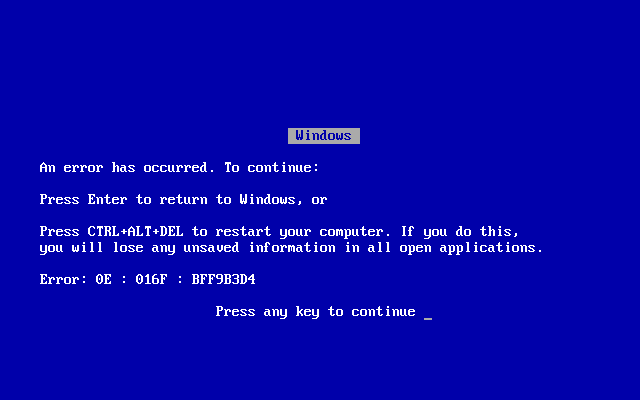
The Blue Screen of Death is something we've all dealt with at some point, and it is the result of improperly coded software.  The reaction we have when this happens is usually one of frustration and anger, but we accept it and reboot.

What if the result is something more malicious, like administrative (root), or even SYSTEM access?  Now, the fuzzer just discovered a way to gain permissions that a standard user should never have.

If the fuzzer who discovered the vulnerability wears a White Hat, they report it to the software developer who then starts creating the patch to correct the vulnerability.

Now that the patch has been written, it's ready for distribution.  While you're working on your system, you get this notification:


I know when I see this, my inner-procrastinator wants to click the 'X'.  However, knowing what it might fix, I click on it, run the installer, and hope I don't need to reboot.

Security patches are distributed by the software vendor who created the software.  You should only download and install patches from them, and not from a third party.  Any developer, Microsoft, Adobe, Apple, etc. should periodically send notice of patches.  To help protect your system, set it to automatically download and install the patches.  If you choose not to do this, you will need to make sure you check for updates at least weekly.  Do this for all of your software to ensure maximum protection.

Patches, and now you know...

Thanks for reading!

Here are a few references:
https://www.owasp.org/index.php/Fuzzing
https://www.cert.org/vulnerability-analysis/research/discovery.cfm?
https://en.wikipedia.org/wiki/Blue_Screen_of_Death
https://www.cert.org/vulnerability-analysis/research/discovery.cfm?
https://en.wikipedia.org/wiki/White_hat_(computer_security)
https://en.wikipedia.org/wiki/Grey_hat
https://en.wikipedia.org/wiki/Black_hat
https://social.technet.microsoft.com/Forums/en-US/6259994a-80e9-4e2c-9fa8-4df6b614d641/no-windows-update-notifications?forum=W8ITProPreRel


Sunday, March 20, 2016

Pesky Passwords

Since this blog is in support of my MS in Cybersecurity program, I thought the perfect way to start it off would be to talk about something each of us have, but might neglect: passwords.

If you're reading this, chances are you have an account with a password that you created...hopefully none of these look familiar:

- 123456
- password
- 12345678
- qwerty
- 12345
- 123456789
- football
- 1234
- 1234567

These are the 10 most popular passwords in 2015. If you are using any one of these (or the other 15 of the top 25), pay special attention to the next three words: CHANGE YOUR PASSWORD!

Creating a password that is easy to remember and also complex enough to avoid being cracked is easier than you think. We need to establish some guidelines before we get started:

1. Length - your password should be at least 8 characters, but I recommend 12 or more
2. Character variance - use a mix of upper and lower case letters, numbers, and special characters
3. Avoid keyboard walks - this is a password that looks like this: qwertyuiop OR 1qw23er45ty6
4. Avoid dictionary words - at least avoid them as they appear in the dictionary

All set? Let's get started! One easy method is to pull a quote or lyric from your favorite movie or song...because I'm a nerd, let's use Star Wars - May the Force be with you.

Right away, we have 20 characters, excluding the spaces, which looks like this - MaytheForcebewithyou

We already have a couple different upper and lower case letters, so let's add some numbers and special characters. Since we will be swapping out some of our letters, we need to look at other characters that look like them. Here are a few that look similar:
I = 1
i = !
s = 5
E = 3
B = %
b = & (okay, the 'B's' might be a stretch but they work, right?)

Alright, time for the numbers!
MaytheForcebewithyou turns into Mayth3Forc3b3withy0u

Let's add some crazy special characters!
Mayth3Forc3b3withy0u turns into M@yth3Forc3&3w!thy0u

Right now, it's pretty good. But we're breaking the 4th guideline. One more change.
M@yth3Forc3&3w!thy0u turns into M@yth3Forc3&3w!t#y0u

The last change probably isn't necessary, since it would take a desktop computer 425 quintillion years to crack either way. But, you get the idea.

In addition to creating a good password, don't use the same password for everything.  Use a variety of passwords for your accounts.  In the event your password is compromised, the same key will open all doors.

One final thought.  You should change your password periodically.  Every 90 days is a good baseline, just make sure you create something hard to guess each time.

About Me

My name is Nick, and I have worked in as a system administrator and security operator for the past 16 years in the US Air Force.  I have a variety of certifications from GIAC, CompTIA, and LPI.  This blog is part of the curriculum for my MS in Cybersecurity program at Bellevue University.  Also, this is my first blogging experience, so I'll gladly take any constructive criticism to make it better.